
How to Reset MagIQtouch Wi-Fi to Recognize a New Router (Modem)
⚠️ Customer Safety Notice
This article contains general information intended for homeowners and occupants. Installation, servicing, repairs, electrical work, gas work and refrigerant-related work must only be carried out by appropriately qualified and licensed personnel.
Before performing any checks or maintenance, ensure the equipment is switched off and safe to access. Do not remove covers, enter roof or ceiling spaces, work at heights or attempt repairs unless you are qualified to do so.
If in doubt, contact an authorised service agent or licensed tradesperson. Safety must always take priority.
Wi-Fi router (modem) changed - how do I reset my MagIQtouch Wi-Fi to recognize the new router (modem)
How to Reset MagIQtouch Wi-Fi to Recognize a New Router (Modem)
If you change your modem/router, your Wi-Fi name (SSID) will change, and your MagIQtouch will show "No Internet." Follow these steps to reset your MagIQtouch Wi-Fi to recognize the new router (modem):
Check Wi-Fi Status:
- Go to SETTINGS.
- Navigate to GENERAL.
- Select WiFi SMART APP SETUP.
- Verify the status of the Wi-Fi app setup.
Reconnect to New Wi-Fi:
- In the WiFi SMART APP SETUP menu, select your new Wi-Fi network (SSID).
- Enter the password for your new Wi-Fi network.
- Confirm the connection and wait for the MagIQtouch to connect to the new network.
Verify Connection:
- Once connected, check the status to ensure the MagIQtouch is online and functioning correctly.
- If you change your modem/router your WIFI name (SSID) will change, and your MagIQtouch will show No internet
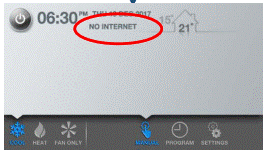
- Check status of the Wi-Fi app setup in SETTINGS – GENERAL – Wi-Fi SMART APP SETUP
