XE71 Wall Controller Changing Language KDHV and Dominator YouTube Video
⚠️ Customer Safety Notice
This article contains general information intended for homeowners and occupants.
Installation, servicing, repairs, electrical work, gas work and refrigerant-related work must only be carried out by appropriately qualified and licensed personnel.
Before performing any checks or maintenance, ensure the equipment is switched off and safe to access. Do not remove covers, enter roof or ceiling spaces, work at heights or attempt repairs unless you are qualified to do so.
If in doubt, contact an authorised service agent or licensed tradesperson. Safety must always take priority.
Applies to: Braemar XE71 Wall Controller
Models: XE71-42G-A and compatible variants
Category: Controller Settings
Last Updated: September 2025
Click to view YouTube Video XE71 Wall Control Setting Language
Summary
To change the language on your Braemar XE71 wall controller:
- Turn the controller Off, then On.
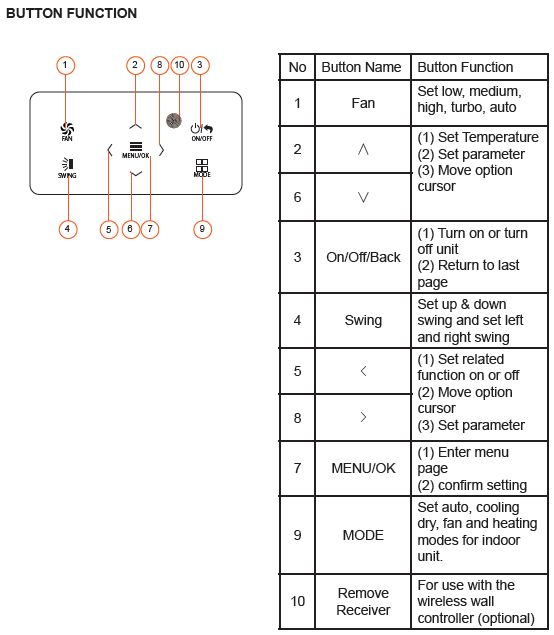
- Press Menu/OK.
- Navigate to the Function tab.
- Scroll down to Language.
- Select English and confirm.
Step-by-Step Guide
1. Start from the Home Screen
- Press the ON/OFF button to turn the controller Off, then again to turn it On.
2. Enter the Menu
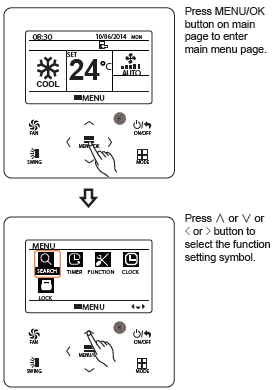
- Press the MENU/OK button to access the main menu.
3. Navigate to the Function Tab
- Use the → (right arrow) to scroll across the top row.
- Stop when the Function spanner icon is highlighted.
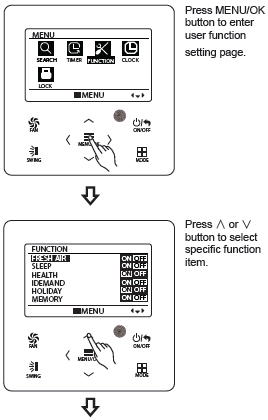
- Press MENU/OK to enter the Function tab.
4. Scroll to Language Settings
- Use the ↓ (down arrow) to scroll to the bottom of the list (approx. 17 items).
- Select Language and press MENU/OK.
5. Select English
- Use the ↑ (up arrow) to scroll to the top of the language list.
- Highlight English.
- Press MENU/OK to confirm.
6. Exit Settings
- Press the On/Off/Back button to return to the home screen.
- The controller interface will now display in English.
Simple Steps - How to Change Settings:
- Press the MENU/OK button on the main screen to open the menu.
- Use the arrow buttons (∧, ∨, <, >) to find the settings icon.
- Press MENU/OK again to enter the settings.
- Use ∧ or ∨ to scroll through the options.
- Use < or > to turn a setting on or off.
- If a setting is greyed out, it means it can't be changed.
- To exit push On/Off/Back button

Troubleshooting Tips
Language Option Not Visible
- Ensure the controller is powered On and you're in the Function tab.
- If the Language option is missing, the firmware may not support multi-language settings.
Controller Not Responding
- Check if the controller is properly powered.
- Try resetting the controller by turning it Off and On again.
- If buttons are unresponsive, inspect for Key Lock settings under the Lock tab.
Language Change Not Saved
- Ensure you press MENU/OK after selecting English.
- If the controller reverts to the previous language, try the process again and confirm each step.