
MagIQtouch Wi‑Fi Smart App — Frequently Asked Questions (FAQ) - 02/2026
Applies to: MagIQtouch wall controller systems fitted with the MagIQtouch Wi‑Fi Smart Controller (2.4 GHz only)
861796-B Lit Install WIFI MaglQtouch No Power Pack Pdf attached
Links to useful YouTube Videos at bottom of web page
1) Overview
What does the MagIQtouch Wi‑Fi Smart App do?
It allows remote control of compatible MagIQtouch‑equipped cooling/heating systems via the internet using iOS or Android devices, once the wall controller is connected to your home Wi‑Fi and linked to your Seeley account.
Which Wi‑Fi band does it use?
2.4 GHz only (it will not connect on 5 GHz). Ensure the 2.4 GHz band is enabled on your router.
Does it use much data?
Very little—approximately the equivalent of downloading one JPEG photo per month.
2) Compatibility & Requirements
What do I need for Wi‑Fi control to work?
- A MagIQtouch wall controller and compatible appliance.
- MagIQtouch Wi‑Fi Smart Controller (module) installed indoors.
- 2.4 GHz Wi‑Fi network with internet access.
- Seeley account (created in the mobile app).
- Mobile app on iOS or Android (iOS 9.0+ / Android 5.0+).
My wall controller doesn’t show Wi‑Fi options—why?
- Confirm you have a MagIQtouch wall controller on a compatible system.
- Check the controller software version (Settings → General → Software Revision).
- For single‑controller systems, version 44R0218 or later is required; for multi‑controller systems, 44R0418 or later.
- Check that Wi‑Fi Smart Control appears under Settings → Service → “The following parts were found on the system."
3) Setup — Quick Start
Step A — Prepare the hardware
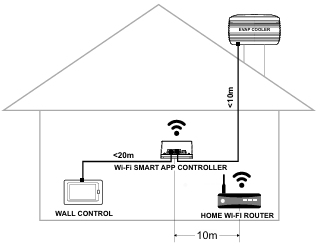
- Install the MagIQtouch Wi‑Fi Smart Controller indoors and ideally within 10 m of the home router for best performance. If signal is weak, move it closer to the router.
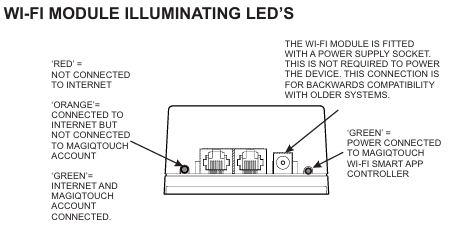
- The module power is supplied via the appliance connection; the barrel power socket is only for backwards compatibility (not required on current systems).
Step B — Create your Seeley account (mobile app)
- Install the “MagIQtouch Wi‑Fi Smart App” from the App Store/Google Play.
- Open the app → Create an account.
- Enter your details, verify the email using the code sent from
noreplyIOT@seeleyinternational.com.
Step C — Connect the wall controller
- On the wall controller, go to Settings → MagIQtouch App Setup and select your 2.4 GHz Wi‑Fi network.
- Enter the network password (case‑sensitive) and connect.
- Enter your Seeley account email and password to link the controller to the cloud.
Step D — Finish in the app
Reopen the app and complete the prompts (country, address, system name). The system is then ready to use.
4) LED Status — What do the lights mean on the Wi‑Fi module?
- Left LED Green: Power present.
- Right LED Red: Not connected to the internet.
- Right LED Orange: Internet connected, not linked to a MagIQtouch account.
- Right LED Green: Internet + account connected.
5) Multi‑Device & Control
Can multiple phones control the system?
Yes. Multiple iOS/Android devices can connect using the same MagIQtouch account (same email/password). The device that last makes a change becomes the current controller. Keep all devices on the same app version.
6) Using the System Without Internet
If my internet/Wi‑Fi goes down, can I still use heating/cooling?
Yes. The wall controller continues to operate the system normally. The mobile app will not work again until internet connectivity is restored.
7) Signal Strength & Placement
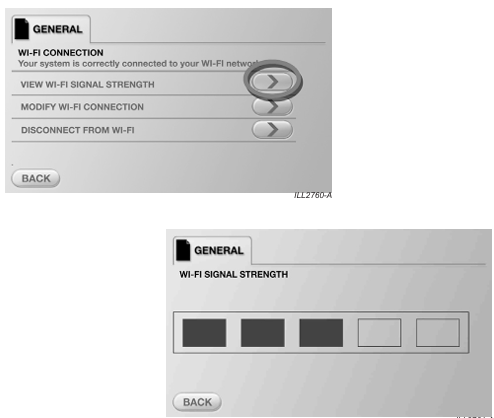
How do I check Wi‑Fi signal strength?
On the wall controller: Settings → MagIQtouch App Setup → Wi‑Fi Connection → View Wi‑Fi Signal Strength. Aim for at least 3 solid bars; if lower, reduce the distance between the router and Wi‑Fi module.
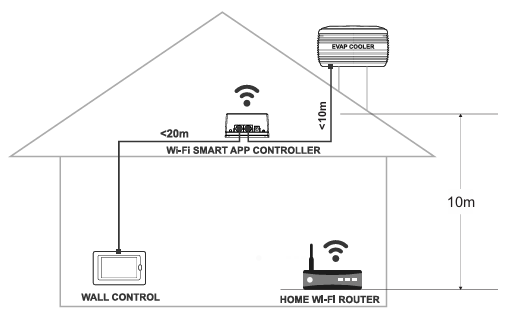
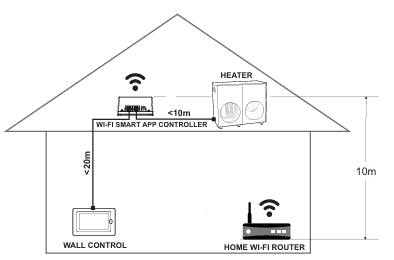
If you have any concerns about signal strength from the home router place the smart app controller as close as practical to the home Wi-Fi router location
8) Troubleshooting
A) Mobile App Issues
“No internet connection” in the app
- Confirm your phone is on Wi‑Fi or cellular (3G/4G/5G) and Airplane/Flight mode is OFF.
- Ensure you’re on the latest app version; if issues persist, uninstall → power the phone off/on → reinstall.
- Note exact error message and your phone model/OS for support.
“Cannot connect to the system. Please check your wall controller.”
- Verify the home router has internet access.
- Ensure the MagIQtouch Wi‑Fi module is within range of the router.
- Confirm the wall controller is connected to Wi‑Fi and logged into your account.
App changes aren’t reflected on the wall controller
- Close and reopen the app.
- On the wall controller, check signal via Settings → MagIQtouch App Setup → Wi‑Fi Connection → View Wi‑Fi Signal Strength.
- Confirm “Wi‑Fi” is displayed on the wall control Home screen.
Forgotten account password
Use Forgot password on the app login screen and follow the reset prompts. Enter the new password on all mobile devices and the wall controller.
B) Wall Controller / Wi‑Fi Connection
My Wi‑Fi network doesn’t appear on the wall controller
- Ensure the Wi‑Fi module is within range of the router.
- Confirm the router’s 2.4 GHz band is enabled.
“Wi‑Fi (No Internet!)” shows on the wall controller
The controller lost connection to the MagIQtouch servers.
- Check the home router’s internet connection.
- Ensure the router hasn’t been moved too far from the Wi‑Fi module.
- Re‑enter your account details on the wall controller (Settings → MagIQtouch App Setup → Wi‑Fi Connection).
Wall controller can’t connect to my Wi‑Fi
- Confirm 2.4 GHz is enabled on your router.
- Re‑enter the Wi‑Fi password exactly (case‑sensitive).
Wall controller can’t connect to my account
- Confirm the router has internet access.
- Re‑enter the correct Seeley email/password (case‑sensitive).
- If you reset your password via the app, enter the new one on the wall controller as well.
C) “No Wi‑Fi options” after installing the app
- Ensure you have a MagIQtouch wall controller on a compatible system.
- Check the wall controller software version (see Compatibility & Requirements above).
- Confirm the Wi‑Fi Smart Control appears in the system parts list under Settings → Service.
9) Safety & Installation Notes (for installers)
- Install the Wi‑Fi Smart Controller indoors only, per local regulations by trained/qualified personnel.
- Place within ~10 m of the home router for best performance; if the roof space attenuates signal, position the module closer to the router.
- Observe OHS requirements and conduct a risk assessment before commencing work at heights.
Useful MagIQtouch Wi-Fi Smart App Controller