
Smart Life (Tuya) App – Wi‑Fi Connection & Troubleshooting (Braemar High Wall Split Systems)
Purpose
This article provides instructions for connecting Braemar TSHV Series split systems to the Smart Life (Tuya-based) mobile application, along with guidance for resolving common connection issues.
Application Overview
Braemar Wi‑Fi enabled split systems utilise the Smart Life – SmartHome application for remote control and monitoring.
- Platform: Tuya Smart ecosystem
- Compatibility:
- Android 5.0 or later
- iOS 9.0 or later
- Network requirement: 2.4 GHz Wi‑Fi only
⚠️ Important Notes Before Setup
Ensure the following conditions are met prior to connection:
- Mobile device connected to a 2.4 GHz Wi‑Fi network
- Indoor unit is powered ON
- Correct Wi‑Fi credentials are available
- Required app permissions enabled:
- Location
- Storage
- Camera
- Bluetooth may be required depending on the connection method used (e.g. Bluetooth pairing mode)
Note: Failure to enable required permissions may result in connection issues or incomplete functionality.
Connection Procedure
Step 1 – Install and Configure the App
- Download Smart Life – SmartHome from the Apple App Store or Google Play Store
- Open the app and complete the following:
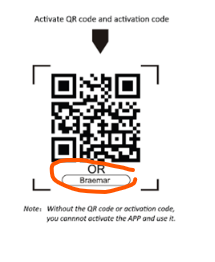
- Activate the app (via QR code or activation code if required)
- Register an account
- Log in
- Create a “Home” (family) and assign rooms
Step 2 – Add the Air Conditioner
- Tap+ Add Device”
- Select:
- Air Conditioner (BT + Wi‑Fi)
Step 3 – Select Connection Mode
Three connection methods are available. Use CF Mode first.
Method 1: CF Mode (Default Method)
- Reset the unit Wi‑Fi module
(depending on remote control type, use one of the following):- Press DISPLAY key (6 times within 8 seconds)
- OR press ECO key (6 times within 8 seconds)
- OR press General key (9 times within 8 seconds)
- Confirm the unit display shows “CF”
- Enter Wi‑Fi password in the app
- Wait for connection process to complete
Display indicators:
- PP – Searching for router
- SA – Connected to router
- AP – Connected to server
Method 2: AP Mode (Alternative Method)
- Select AP Mode in the app
- Reset the unit until the display shows “AP”
- Connect the mobile device to:
- SmartLife‑XXXX Wi‑Fi hotspot
- Return to the app and continue setup
Method 3: Bluetooth Mode
- Enable Bluetooth on the mobile device
- Select Bluetooth connection mode in the app
- Follow prompts to complete pairing
Post-Connection
Once successfully connected:
- Rename the device
- Assign to a room
- Begin operation via the app
Note: The app interface may vary depending on the air conditioner model or firmware version.
⚠️ Troubleshooting Guide
❌ Unable to Add Device
Possible causes:
- Incorrect Wi‑Fi frequency
- Device not reset correctly
- Incorrect Wi‑Fi credentials
Actions:
- Confirm the network is 2.4 GHz
- Reset the device and retry connection
- Confirm Wi‑Fi SSID and password are entered correctly
- Attempt connection using an alternative method (e.g. AP Mode)
❌ Device Not Detected in App
Possible causes:
- Device not in pairing mode
- Incorrect device type selected
Actions:
- Confirm the unit display shows CF or AP mode
- Select Air Conditioner (Wi‑Fi) manually in the app
- Repeat reset procedure
❌ Device Shows Offline or Cannot Be Controlled
Possible causes:
- Network interruption
- Power loss to unit or router
- Temporary connection delay
Actions:
- Restart router and indoor unit
- Allow time for the unit to reconnect
- Reconnect device if Wi‑Fi network settings have changed
❌ Connection Reliability Issues
Possible causes:
- Network conditions affecting communication
- Installation environment impacting signal quality
Actions:
- Ensure reliable Wi‑Fi coverage is available at the unit location
- Confirm router settings allow device connectivity
- Minimise potential sources of network interference
❌ Loss of Control After App Reinstallation or Power Interruption
Possible causes:
- Temporary loss of control permission
- Reconnection delay following power interruption
Actions:
- Log back into the same account
- Allow time for reconnection
- Reconfigure the device using CF Mode if required
⚠️ Router Configuration Checks
If connection issues persist, verify that:
- Wi‑Fi network (SSID) is visible
- DHCP is enabled
- MAC filtering is disabled
- No firewall settings are blocking connection
⚠️ QR Code Guidance
Some printed manuals contain QR codes for app download or activation.
Important:
QR codes may not always function as expected or may be intended for activation only.
Recommended action:
- Download the app directly from:
- Apple App Store
- Google Play Store
- Search for: Smart Life – SmartHome
Summary
- Braemar Wi‑Fi systems connect using the Smart Life (Tuya) application
- Connection requires:
- 2.4 GHz Wi‑Fi
- Correct pairing mode (CF / AP / Bluetooth)
- Connection issues may relate to:
- Network configuration
- Pairing procedure
Following the above steps will resolve the majority of connection issues.
Important Notice
Connection procedures in this article are based on the manufacturer’s Wi‑Fi manual.
Additional troubleshooting guidance reflects common operational scenarios observed during installation and support.